






Anona Orbis FAQs
Product Tutorial Videos

Installation Guide
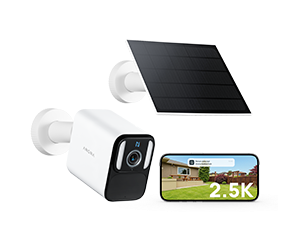
Mount your Orbis and solar panel correctly for optimal coverage and reliable solar charging.

App Connection
Connect your Orbis camera to Anona App and start monitoring your home from anywhere.

Google Home Integration
Link your Orbis camera with Google Home for convenient voice control and live viewing.

Connect Orbis to Alexa
Use Alexa to view live footage and control your security system hands-free.
FAQ-Network Configuration and Binding
What should I do if the device cannot enter the network configuration state?
Ensure the device is powered on with >2% battery (reset fails on low battery). Press and hold the Reset button for 4 seconds until you hear the "Device reset successful" prompt.
Why does it prompt "Connection failed" during network configuration?
- You are using a 5GHz network (only 2.4GHz is supported).
- The Wi-Fi password is incorrect.
- The device is too far from the router (keep within 1-3 meters).
- The device is bound to another account. The original owner must delete it from their App first.
How to reconfigure Wi-Fi for a bound device after changing the network?
Hold the Reset button for 4 seconds, then follow the initial setup in the App to connect to the new Wi-Fi. The original account binding remains unchanged.
FAQ-Power&Charging
How is Orbis powered?
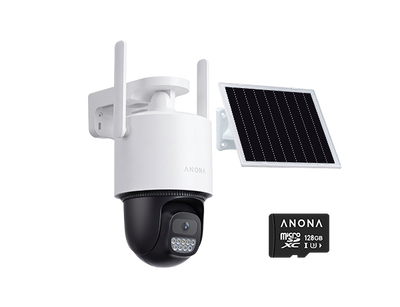
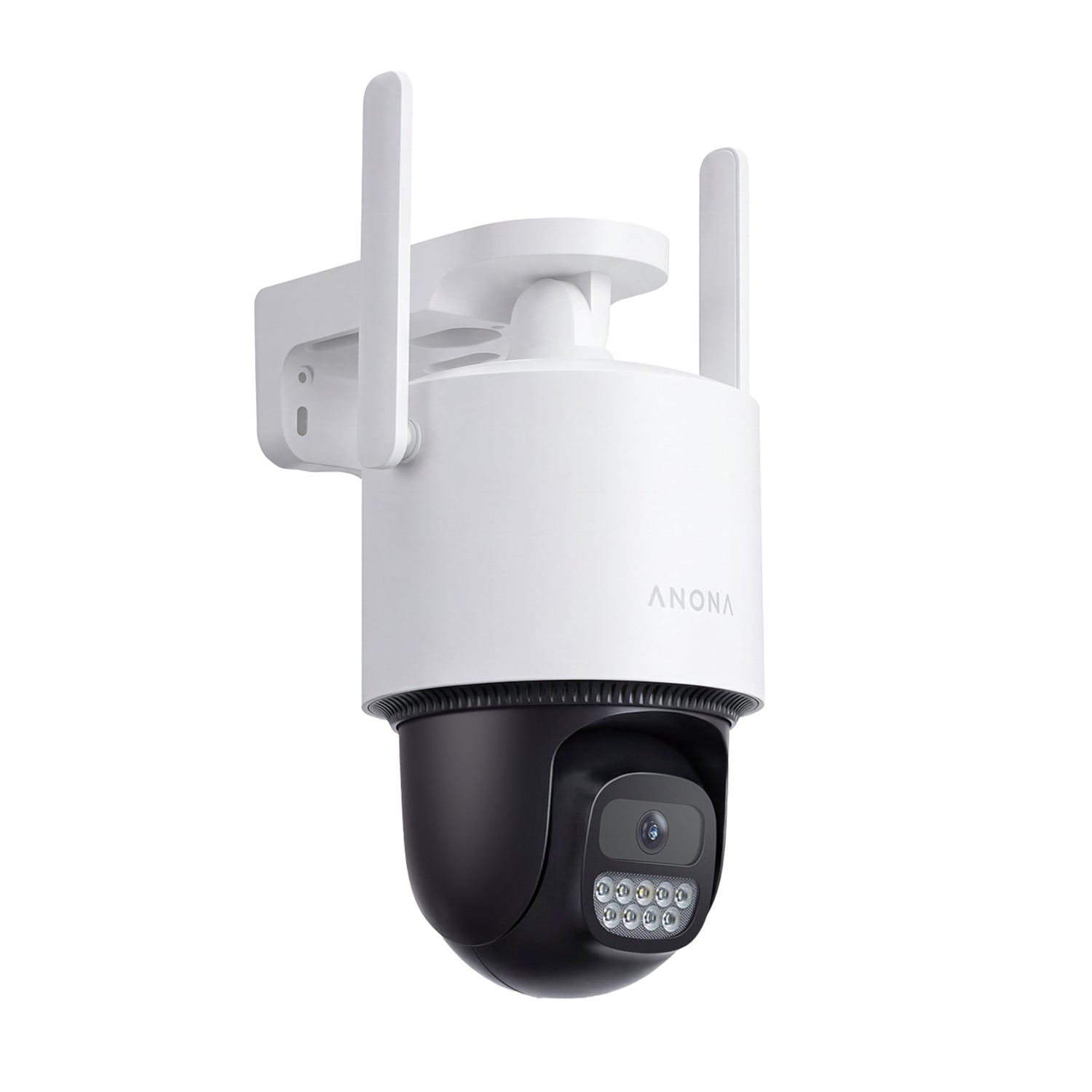
Orbis is powered by a built-in rechargeable battery and can be continuously recharged using the included solar panel. It also supports a 5V/2A power adapter for stable continuous power when a power source is available.
What do the indicator light colors mean?
- Solid Red: Charging
- Solid Blue: Fully charged
- f there is no light, check the cable connection or see if the device is powered off.
What if the solar panel charges slowly?
Ensure the panel faces direct sunlight without obstruction. Efficiency drops on cloudy/rainy days; please use a Type-C cable to recharge.
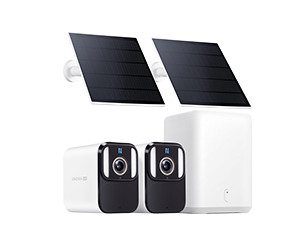
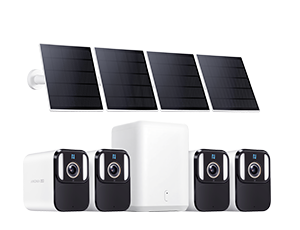
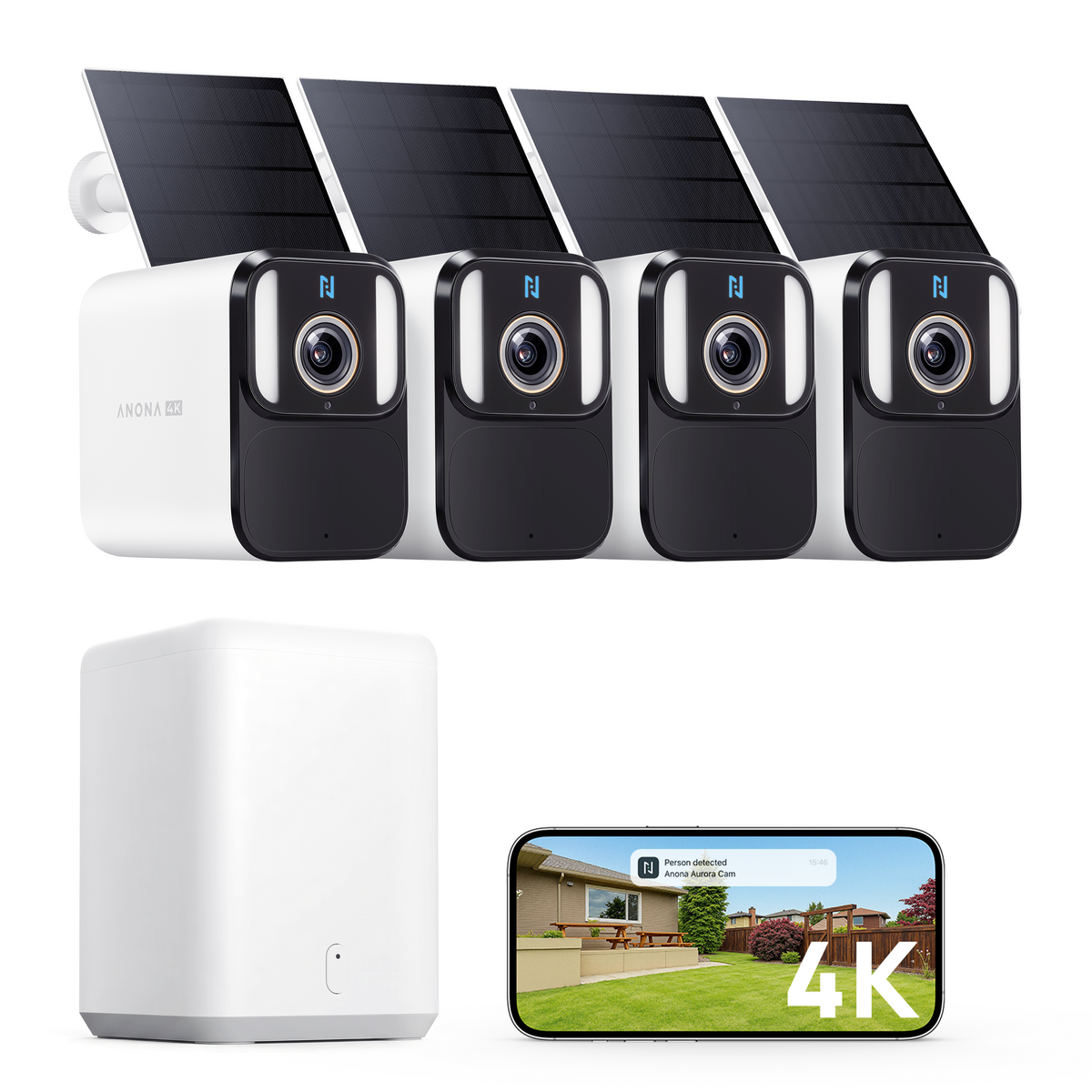
How do I connect SmartBase to the network? What is the recommended setup?
SmartBase supports Ethernet connection (recommended) and 2.4GHz WiFi; 5GHz WiFi is not supported.
- Ethernet (Recommended):
Stable and neat. Connect directly to a wall network port, Mesh satellite LAN port, or switch without long cables from the main router. Use existing wiring and place the base station close to the camera for optimal signal.
- WiFi Connection:
Only supports 2.4GHz. Place the base station 5–8 meters between the router and camera, minimizing wall obstructions to ensure good signal quality.
How to handle frequent "Low Battery" alerts?
Alerts trigger at ≤10%. If they persist after charging, disable high-power features in the App (e.g., lower AOV interval, disable unnecessary alarms). The device enters Power-Saving Mode automatically at ≤20%.
Is it normal for some features to be disabled in Power-Saving Mode?
Yes. To save battery, features like PTZ tracking, alarms, and AOV recording are disabled. You can manually exit this mode in the App when the battery is >25%.
FAQ-Storage
Does the device record when offline?
Yes. If Wi-Fi disconnects, recordings are still saved locally to the SD card and can be viewed once the device reconnects.
Can I recover videos after formatting the SD card?
No. Formatting permanently deletes all files. Please download important videos before formatting.
How to fix the "Local storage abnormal" prompt?
Format the SD card via "Storage Management" in the App. If it fails, ensure your card is compliant (16GB-128GB, Class 10/U1/V10 or higher). Standard low-speed cards are incompatible.
What should I do if the device cannot recognize a new SD card?
- Unformatted: The device will attempt to auto-format on startup. If it fails, manually format it in the App.
- Incompatible specs: Ensure the new card is compliant (16-128GB capacity, Class 10/U1/V10 or higher speed).
- Poor connection: Check the slot for debris, remove the SD card, and reinsert it firmly.
Will the SD card auto-overwrite old videos when full?
Yes. When storage drops below 4%, the oldest videos will be automatically overwritten.
FAQ-Troubleshooting
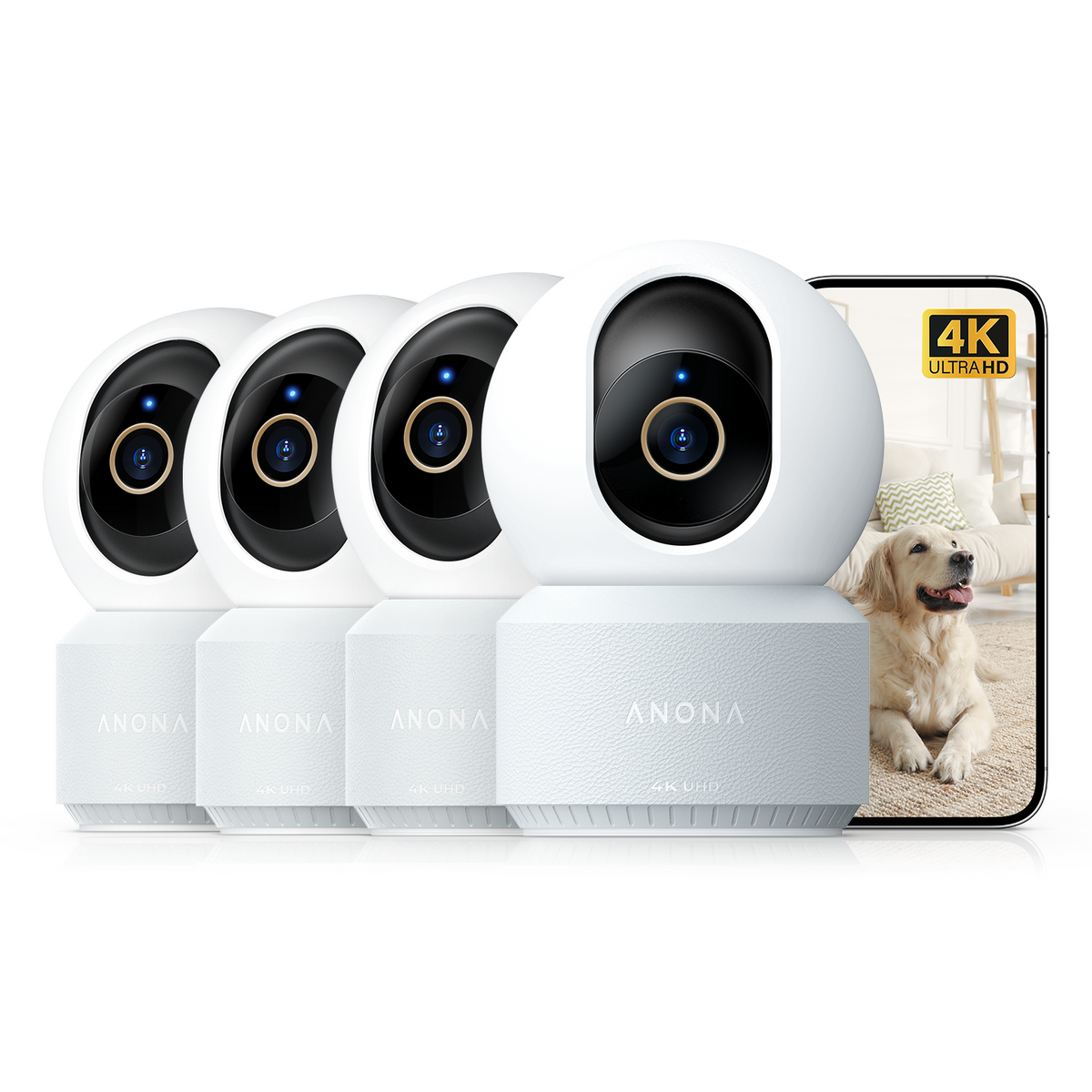
What if the PTZ camera stutters or cannot rotate?
- Power-Saving Mode: This mode disables auto-tracking. If manual control stutters, exit this mode and retry.
- Physical Obstruction: Clear any objects blocking the camera and execute "Manual Reset PTZ" in the App.
- System Error: Try a factory reset. If the issue persists, contact customer support for a hardware check.
What if AOV playback has no video or stutters?
- Long Interval: Longer intervals (e.g., 30s/frame) cause disjointed playback. Adjust to 1s or 3s for smoother video.
- Slow SD Card: Low write speeds cause frame drops. Please use a Class 10/U1/V10 or higher speed SD card.
- Night Vision: AOV defaults to black-and-white infrared at night. This is normal and cannot be changed to color.
Why does the event recording duration not match my settings?
Event recording stops based on two rules (whichever triggers first):
- The target disappears from the frame, and no new target is detected within 3 seconds.
- The recording reaches the "Maximum Recording Duration" you set in the App.
Why can't I enable AOV recording?
- No compliant SD card inserted.
- Device is in Power-Saving/Sleep Mode (exit to enable).
- Old firmware version (upgrade and enable in settings).
How to adjust blurry, black-and-white night videos?
By default, night vision is B&W Infrared, switching to color (spotlight on) only when human motion is detected. For clearer details, set the resolution to 2.5K in the App and ensure the IR lights are unobstructed.
FAQ-Device Working Mode
What's the difference between Sleep and Standby Mode?
Standby Mode: Low power, Live View available, AOV detection on.
Sleep Mode: Deep sleep, Live View unavailable, AOV detection off. Restart to exit.
What should I do if the device shows "Offline" but is actually connected?
Please restart your router to troubleshoot the network connection, or reset the device's network settings and reconfigure it.
Why does it prompt "Transfer verification code required" when reconnecting?
This is a security mechanism to prevent unauthorized access, meaning another account tried to add the device while it was offline. The new account must enter a "Transfer Verification Code" generated by the original account's App to bind it successfully.
FAQ-Other
Does a factory reset delete SD card videos?
No. Resetting the device doesn't delete files. The original account can still view them upon logging in. However, binding the device to a new account will wipe the previous files.
Does the device support multiple users watching live simultaneously?
Yes. However, if network bandwidth is low, the system will automatically reduce the live stream resolution and notify users to ensure smooth playback.
What if privacy zones are set but the video is not masked?
- Unsaved: Ensure you draw the zone using 4 points and tap save in the App (max 2 zones).
- Not refreshed: Exit and re-enter the Live/Playback page to see the masking effect.
- Position error: If the mask fails after a factory reset, please redraw and save the zone.
What if Google Assistant / Alexa cannot connect to the live stream?
- Resolution limit: Voice-controlled streams only support 720P. If your device is set to 2.5K, it will automatically downscale.
- Device conflict: Only one voice terminal can play the stream at a time. A new request will interrupt the previous one, so ensure only one terminal initiates the live stream.
How do I get device system logs for troubleshooting?
Logs are saved on the SD card. If you encounter complex issues, please contact our customer support team to export the logs using specialized tools for diagnosis.
Still Need Help?
We're here to assist you whenever you need us.


